
Support
Remote support with ScreenConnect
Have you arranged remote support with one of our support staff? Remote support with ScreenConnect then takes three steps to set up a temporary connection.
Connected in 3 steps
01
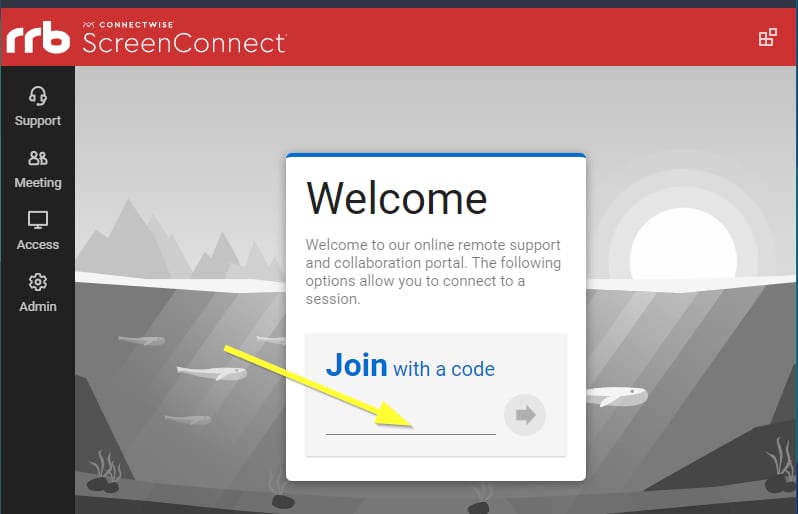
Open ScreenConnect
- Go to rrbsecurity.screenconnect.com.
- Enter the 5-digit code you received from us.
02
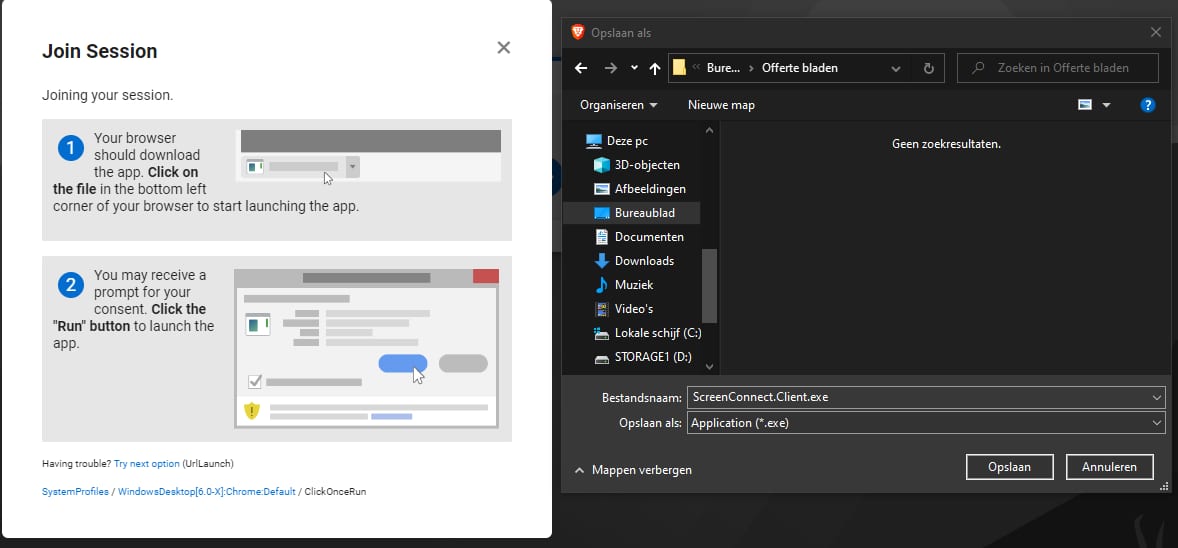
Download and run the file
- Your browser will ask whether you want to download or save the file.
- Run the file. The connection will then be established.
03
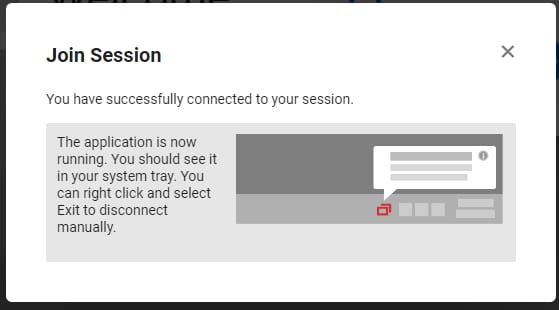
Connected
- Once it has started, you will see this message on the web page.
- Then contact our support staff member again. We will continue to help you remotely.
More support from RRB Security
Frequently asked questions
Frequently asked questions about remote support
Can't find your question? Our specialists are happy to help with advice that fits your situation.
Where do I get the 5-digit code?
You get it from our support staff member, after you have arranged remote support together.
Are there any costs for remote support?
If you do not have a service agreement, charges may apply.
Haven't arranged anything with our support team yet?
Then first report your fault or question via support@rrbsecurity.nl.